
Use a clip to control the visible boundary
A clipping path defines which part of an object is drawn. In SVG, clipping changes visibility while the underlying geometry stays intact. A circle can reveal the center of a rectangular picture without changing that picture into a vector circle. The hidden portion may still be present in the editable document.
The example below uses a simple landscape illustration. Its outside rectangle stays the same size on both sides. On the right, only the circle is visible. The dashed rectangle shows the original extent; the checkerboard represents transparency, not a printed background.
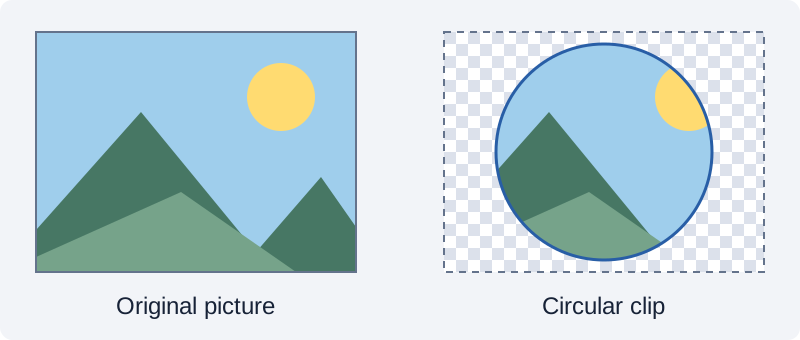
Separate the boundary from the picture inside it
Treat the container and its contents as two editing targets. Moving the complete clipped object should keep their relationship together. Repositioning only the picture changes which part appears through the boundary. Resizing only the boundary changes the crop. Before dragging, check which target is selected and whether you are editing contents or the complete object.
For a repeatable check, start with a picture that contains a recognizable feature near one edge. Place the feature partly outside a circular crop, save the editable document, then reopen it and reposition the contents. This checks whether the workflow retained the hidden area. Undo the test and keep the checked source before continuing with production artwork.
Use masking when the edge needs partial transparency
Clipping defines a visible region. Masking can vary transparency within the region, which is useful for a soft fade or a partially visible edge. Alpha masks use transparency; luminance masks use brightness. A dark area does not have the same meaning in every mask mode, so inspect the chosen interpretation before changing colors.
Check a fade against both a light and a dark background. A pale fringe can be easy to miss on white. Keep this check separate from the question of whether the picture is positioned correctly inside its boundary.
Know what trimming or tracing will change
A crop exported as a new bitmap may discard the hidden pixels. Trimming transparent padding usually changes the rectangular canvas around visible pixels; it does not automatically trace a cut path or remove an opaque background. Record both pixel dimensions and intended print dimensions before comparing the result.
Tracing is a separate operation that approximates image content with paths. Clipping a photo with a vector boundary does not make the photo an editable vector illustration. Likewise, vector union or subtraction operates on geometry; applying a similarly named command to images depends on the editor’s supported workflow. Keep a source copy and inspect the result rather than assuming equivalent commands produce equivalent data.
Check the exported result in its destination
- Save the editable project and keep the original image separately.
- Choose whether the deliverable should contain a rectangular image, a transparent bitmap or an editable clipped vector document.
- Export a small test and reopen it in the application that will receive the final file.
- Check the visible boundary, the position of the picture and the transparency against contrasting backgrounds.
- For print, check a known physical measurement without using Fit to page. For further editing, also test whether hidden content can still be recovered.
A successful download confirms that a file was created. It does not confirm that another application preserves the same clipping structure, editability or physical scale. Use the SVG and PNG size guides when the preview looks correct but the measured output differs.