
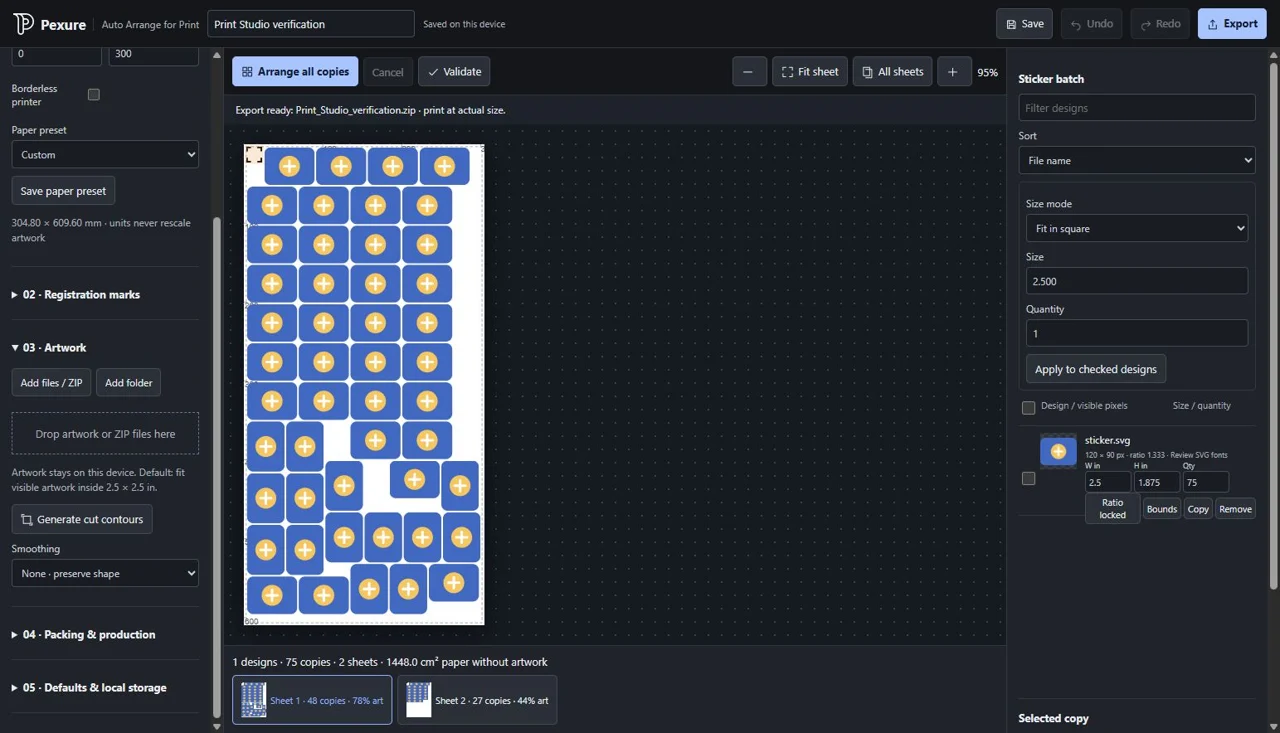
One artwork, several sizes and quantities
Start with the files you want to print. Set the intended width and height in physical units, then choose a quantity for each size. Keep related sizes under the same artwork so a small sticker and a larger version do not need to become unrelated imports. Review the size and count before arranging; a thumbnail’s appearance is not a reliable print measurement.
You can use the sheet preview to check the resulting copies and compare pages. Registration layouts and artwork settings are separate: changing the paper should not be used to silently resize your original designs.
Reserve the space your registration marks need
Choose a supported registration option or load a custom layout for your workflow. Keep artwork inside the intended safe area, with enough separation from the marks for the cutter’s scanning process. A mark’s position and diameter are physical measurements; preview zoom should only affect how you view them.
Cuyi workflows distinguish the unmarked base artwork from the separate marked print output. The marked canvas can be larger while the artwork retains its scale. Always compare the export with your reference and cutter software before production. A named template is not a claim of manufacturer certification or guaranteed hardware compatibility.
From import to an inspected export
- Choose the paper dimensions and registration workflow.
- Add artwork and check its intended physical size.
- Set the size variants and quantities you need.
- Arrange the copies, then inspect every sheet and resolve any reported fit problem.
- Choose the intended output, export and check it in the software used for printing or cutter import.
Keep your editable project as well as the production export. If a design does not fit, review its dimensions, spacing and reserved mark area before reducing it. Fitting the whole page automatically in another application can change the physical scale.
Choose output for the next step
PDF is useful when the page’s physical dimensions need to travel with the document. PNG is useful for raster artwork and transparent areas, but its pixel dimensions and resolution must agree with the intended print size. For example, a 12 × 24 inch image at 300 pixels per inch is 3600 × 7200 pixels.
When using paired base and marked exports, retain their labels and do not substitute one for the other. Inspect the actual exported file for guide lines, registration ink and page size. Make a measured test print before a large batch; printer scaling and cutter calibration are outside a browser preview’s control.
Keep the original files
The print workspace processes artwork locally in the browser. Browser-stored projects can be affected by cleared site data or storage limits, so download a project backup for work you need to retain. Keep your source artwork separately and reopen a saved project before relying on it for a repeat job.