
DESIGN · PREVIEW · EXPORT
Design your next email. Make every message count.
Create a structured email design in your browser with Pexure Email Studio. Start from an editable template, arrange independent content blocks, refine the layout and export HTML for your email-sending workflow.
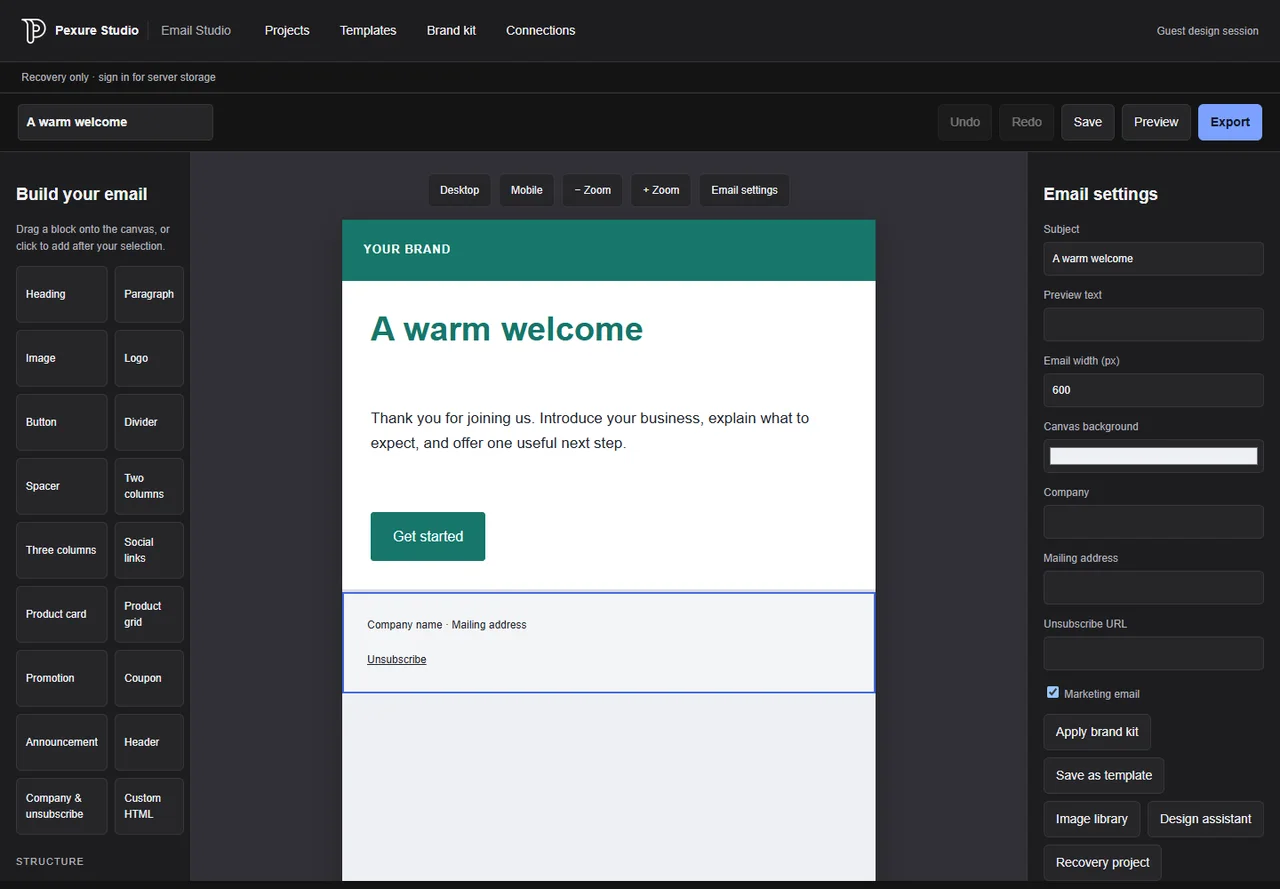
Build with editable blocks
Add headings, paragraphs, images, buttons, dividers, social links and multi-column sections. Each block stays editable, so you can change content and styling without rebuilding the entire message as an image. Move or duplicate sections as the design evolves.
Preview and export
Switch between desktop and mobile previews, then check links, image descriptions and marketing-footer information. Export table-based HTML, a plain-text version or a ZIP with an editable project copy. Preview uses the same HTML generator as export; rendering still varies across actual email clients.
Keep your brand and projects together
Use a saved brand kit for company details, fonts, colors and logo URLs. Signed-in creators can save private email projects on the server and reopen them later. Guest design sessions can export a design, but browser recovery is not a substitute for an account-backed project.
Before you finish your project
Before exporting, replace template placeholders with your own verified content. Images need persistent public HTTPS URLs so recipients can load them. Add useful alternative text, check each button destination, and supply company and unsubscribe details for marketing messages. Keep the editable project as well as the HTML export. An email-client preview is a design check, not evidence of delivery or permission to send to a recipient list.
WORKFLOW QUESTIONS
Know what to expect.
Can Email Studio send campaigns?
No. This release designs and exports emails. Actual sending, Gmail, Microsoft 365 and branded-business-email connections are not enabled. Use the exported HTML with your configured sending provider.
Are templates editable?
Yes. Templates consist of independent email blocks, with editable text, links, colors, spacing and layouts. They are starting points, not flattened screenshots.
Will it look identical in every inbox?
No. The export uses tables, inline styles and responsive rules, but email clients have different rendering support. Check the exported design in the clients used by your audience before sending.