
FROM SVG TO SOMETHING SOLID
Give your artwork another dimension.
Explore Pexure’s browser-based 3D Signage Builder for turning SVG artwork into raised signs and channel-letter models. Configure the model, inspect the result and export files for your next fabrication workflow. The application is currently in beta.
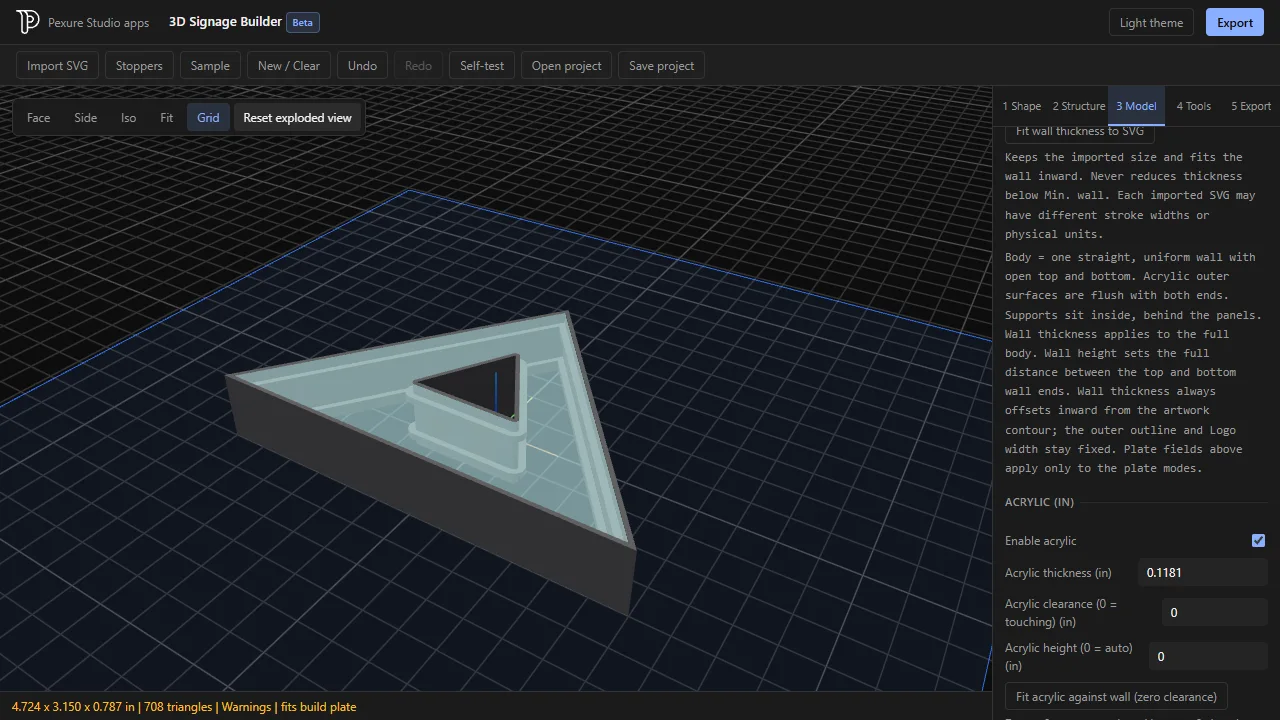
Start from your SVG artwork
Import a supported SVG and check the artwork’s size and contours. Choose a suitable sign structure, then inspect the preview from different angles. Narrow details and small openings need enough room for the wall and support geometry you choose. Always review the imported dimensions before building.
Configure the physical structure
Adjust model dimensions, wall height and inward wall thickness. For supported channel-letter designs, configure acrylic panels and inward support stoppers. The wall and stoppers form the main object while acrylic is treated separately, so you can inspect their fit and prepare distinct deliverables.
Inspect, then export
Use the 3D view and available build checks to review the model. Export supported STL or 3MF model files and acrylic SVG output where applicable. Review the result in your slicer or fabrication software, and make a test piece before committing to a production run.
Before you finish your project
Prepare clean SVG contours and confirm that the intended physical units are carried through the import. Thin strokes and small counters may leave too little room for a wall or stopper. Inspect both outer boundaries and interior openings, check your chosen acrylic thickness and fit tolerance, and review the exported model at its intended size. A correct-looking browser preview is one part of a fabrication workflow; material fit and print behavior still need a physical test.
WORKFLOW QUESTIONS
Know what to expect.
Is this a general-purpose 3D modeling app?
No. It focuses on supported signage workflows built from SVG artwork. It does not replace a general CAD system or guarantee that every imported path will make valid manufacturing geometry.
Can I export acrylic separately?
Supported channel-letter workflows separate acrylic from the main wall-and-stopper object and provide acrylic SVG output. Check the export settings and dimensions for the material and cutting workflow you intend to use.
Does the preview guarantee a print-ready part?
No. Artwork scale, thin features, tolerances, material and printer settings affect the result. Inspect exported files in your fabrication tools and test the fit before production.